> ## Documentation Index
> Fetch the complete documentation index at: https://openrouter.ai/docs/llms.txt
> Use this file to discover all available pages before exploring further.
# Find and Mark Objects in Any Image
> Get bounding boxes and points for any object in a photo with Moondream's /detect and /point commands, then draw them on the image
Use this guide when you need to know where something is in an image, not only whether it is there: to count items, crop them out, check a shelf or a workbench, or tell an agent where to click.
## What you're building
Moondream models answer two slash commands in an ordinary chat completions request. Start the text of a user message with `/detect {"object":"screwdriver"}` and the model returns a bounding box for every match. Start it with `/point {"object":"hammer"}` and it returns one point per match. Both come back as JSON in `message.content`, with coordinates from 0 to 1 relative to the image, so you need no detection API, schema, or prompt engineering.
By the end, you will have a script that:
1. Asks for bounding boxes around one kind of object.
2. Asks for a point on each instance of another.
3. Draws the boxes and points on the photo and saves it as a PNG.
Building with a coding agent? Paste the URL of this page into Claude Code, Codex, or Cursor and ask it to highlight the objects a user types in over the photo they upload, using this recipe.
## Before you start
You need:
* An OpenRouter API key available as `OPENROUTER_API_KEY`
* Bun, or Node.js 22.18 or newer (both run TypeScript files directly)
* `sharp` to load and draw on the image: `npm install sharp`
* A JPEG, PNG, WebP, or GIF photo. To follow along exactly, download the [workbench photo](/docs/assets/cookbook/image-understanding/find-objects-in-images/workbench.jpg) used on this page and save it as `workbench.jpg`.
This guide uses `moondream/moondream3.1-9b-a2b`. `moondream/moondream3-preview` takes the same commands. See the [Moondream 3.1](https://openrouter.ai/moondream/moondream3.1-9b-a2b) model page for pricing, and [Image Understanding](/docs/guides/overview/multimodal/image-understanding) for the ways to send images.
## Step 1: Find every match with /detect
Create `find-objects.ts`. The `loadImage` helper turns the photo upright and reads its format: Moondream reads the stored pixels and ignores the EXIF orientation tag that phone cameras set, so a phone photo would otherwise come back with coordinates for a sideways image. The `locate` helper sends one image and one command, and returns the array of matches. The command must be the first thing in the text part, and its argument must be a JSON object with an `object` key.
```ts expandable lines theme={null}
import sharp from "sharp";
const apiKey = process.env.OPENROUTER_API_KEY;
if (!apiKey) throw new Error("Set OPENROUTER_API_KEY first.");
const MODEL = "moondream/moondream3.1-9b-a2b";
type Box = { x_min: number; y_min: number; x_max: number; y_max: number };
type Point = { x: number; y: number };
type Image = { data: Buffer; mime: string; width: number; height: number };
const MIME_TYPES: Record = {
jpeg: "image/jpeg",
png: "image/png",
webp: "image/webp",
gif: "image/gif",
};
async function loadImage(imagePath: string): Promise {
const { data, info } = await sharp(imagePath)
.autoOrient()
.toBuffer({ resolveWithObject: true });
const mime = MIME_TYPES[info.format];
if (!mime) {
throw new Error(`Unsupported image format: ${info.format}. Use JPEG, PNG, WebP, or GIF.`);
}
return { data, mime, width: info.width, height: info.height };
}
async function locate(
image: Image,
skill: "detect" | "point",
object: string,
): Promise {
const response = await fetch("https://openrouter.ai/api/v1/chat/completions", {
method: "POST",
headers: {
Authorization: `Bearer ${apiKey}`,
"Content-Type": "application/json",
},
body: JSON.stringify({
model: MODEL,
messages: [
{
role: "user",
content: [
{ type: "text", text: `/${skill} ${JSON.stringify({ object })}` },
{
type: "image_url",
image_url: { url: `data:${image.mime};base64,${image.data.toString("base64")}` },
},
],
},
],
}),
});
if (!response.ok) throw new Error(await response.text());
const completion = await response.json();
const content: string = completion.choices[0].message.content;
const key = skill === "detect" ? "objects" : "points";
const matches = JSON.parse(content)[key];
if (!Array.isArray(matches)) {
throw new Error(`Expected "${key}" in the response, got: ${content}`);
}
return matches;
}
const image = await loadImage(process.argv[2] ?? "workbench.jpg");
const objects = (await locate(image, "detect", "screwdriver")) as Box[];
console.log(`detect screwdriver: ${objects.length} boxes`);
console.log(JSON.stringify(objects, null, 2));
```
Run it with `bun find-objects.ts` or `node find-objects.ts`:
```text lines theme={null}
detect screwdriver: 3 boxes
[
{
"x_min": 0.2119140625,
"y_min": 0.41162109375,
"x_max": 0.3193359375,
"y_max": 0.60400390625
},
{
"x_min": 0.27734375,
"y_min": 0.36865234375,
"x_max": 0.32421875,
"y_max": 0.57666015625
},
{
"x_min": 0.3125,
"y_min": 0.3671875,
"x_max": 0.359375,
"y_max": 0.58984375
}
]
```
Each box is the top-left (`x_min`, `y_min`) and bottom-right (`x_max`, `y_max`) corner as a fraction of the image width and height, measured from the top-left of the image. When nothing matches, the model returns `{"objects": []}`.
The `object` value can be a short description as well as a noun. `{"object":"red-handled screwdriver"}` returns one box, around the red one only.
## Step 2: Mark each match with /point
`/point` returns one point on each match instead of a box, which is all you need to count things or to pass a click target to an agent. Add these lines to the end of the script:
```ts lines theme={null}
const points = (await locate(image, "point", "hammer")) as Point[];
console.log(`point hammer: ${points.length} points`);
console.log(JSON.stringify(points, null, 2));
```
```text lines theme={null}
point hammer: 2 points
[
{
"x": 0.54296875,
"y": 0.4375
},
{
"x": 0.50390625,
"y": 0.5234375
}
]
```
## Step 3: Draw the results on the image
Multiply the fractions by the image size to get pixels, build an SVG with a rectangle per box and a circle per point, and let `sharp` lay it over the photo. Add this to the end of the script:
```ts expandable lines theme={null}
const { width, height } = image;
const rects = objects.map((b) => {
const x = b.x_min * width;
const y = b.y_min * height;
const w = (b.x_max - b.x_min) * width;
const h = (b.y_max - b.y_min) * height;
return ``;
});
const dots = points.map(
(p) =>
``,
);
const overlay = Buffer.from(
``,
);
await sharp(image.data)
.composite([{ input: overlay }])
.png()
.toFile("annotated.png");
console.log(`Saved annotated.png (${width}x${height})`);
```
```text lines theme={null}
Saved annotated.png (1360x768)
```
Open `annotated.png` to see the image at the top of this page. To crop a match out instead of drawing it, pass the same pixel values to `sharp(image.data).extract({ left: x, top: y, width: w, height: h })`, rounded to whole numbers.
## Troubleshooting
Moondream returns the same error for every malformed command: `Provider returned error`, with `"message":"Invalid request."` inside `error.metadata.raw`.
| Error | Cause | Fix |
| - | - | - |
| `Invalid request.` | The argument is plain text, such as `/detect screwdriver` | Send a JSON object: `/detect {"object":"screwdriver"}` |
| `Invalid request.` | The key is not `object`, or the value is an array | Use one `object` string per request, and send one request per object type |
| `Invalid request.` | The message has no image, or has more than one | Attach exactly one image to the message |
| `Expected "objects" in the response, got: {"object": "screwdriver"}` | The text does not start with the command, for example `Please /detect …` or a leading space | Put the command first in the text part |
| `Unexpected non-whitespace character after JSON` from `JSON.parse` | The request asked in plain language ("give me bounding boxes"), so the model answered in free text | Use `/detect` or `/point` to get JSON back |
| `{"objects": []}` | Nothing in the image matched the description | Try a more common name for the object, or a shorter description |
| `Unsupported image format: heif` | The photo is AVIF, or another format outside JPEG, PNG, WebP, and GIF | Convert it to JPEG first |
| `moondream/moondream3 is not a valid model ID` | Wrong model slug | Use `moondream/moondream3.1-9b-a2b` or `moondream/moondream3-preview` |
## Check your work
The script should print three boxes for the screwdrivers and two points for the hammers, then save `annotated.png` with a box around each screwdriver and a dot on each hammer. Point it at your own photo with `bun find-objects.ts my-photo.jpg` and change the two `object` strings to what you want to find. Small, tightly packed items can be missed, so check the count against the image before you rely on it.
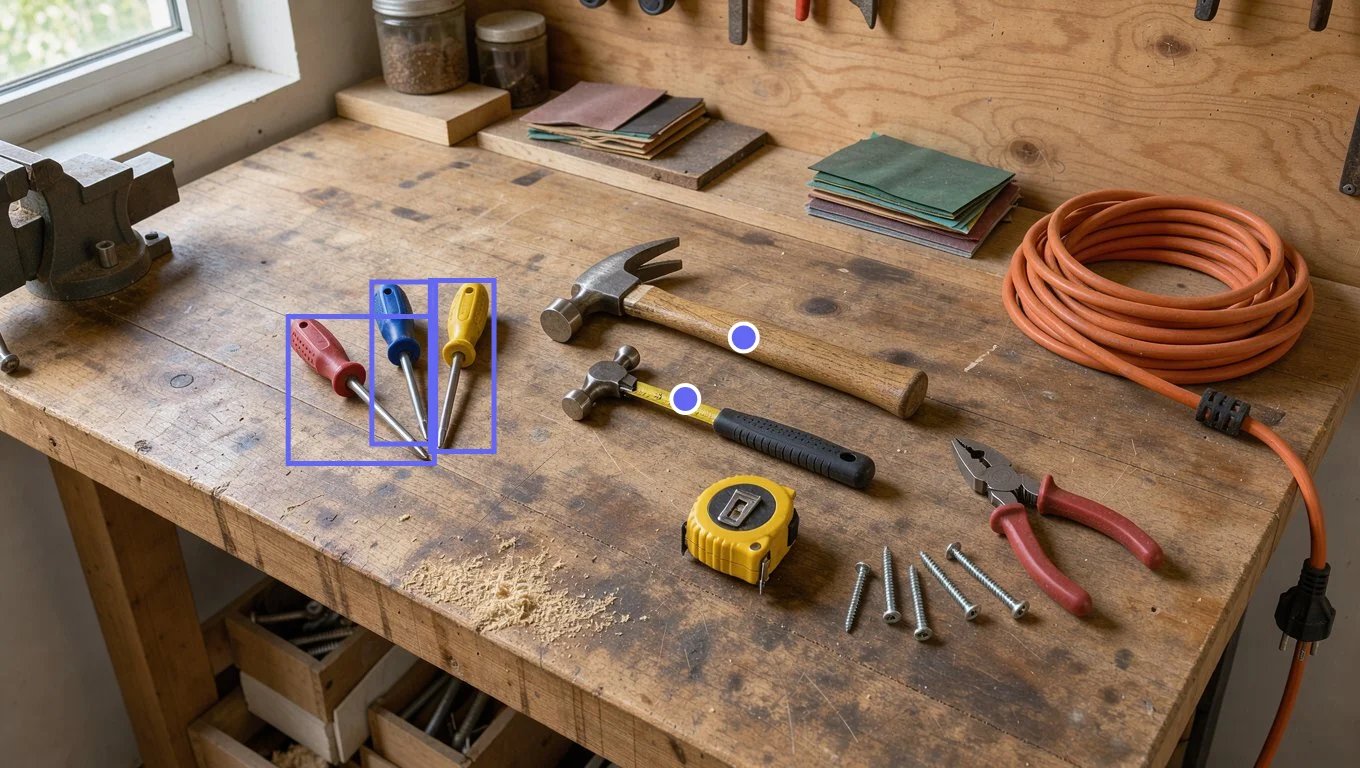 Moondream models answer two slash commands in an ordinary chat completions request. Start the text of a user message with `/detect {"object":"screwdriver"}` and the model returns a bounding box for every match. Start it with `/point {"object":"hammer"}` and it returns one point per match. Both come back as JSON in `message.content`, with coordinates from 0 to 1 relative to the image, so you need no detection API, schema, or prompt engineering.
By the end, you will have a script that:
1. Asks for bounding boxes around one kind of object.
2. Asks for a point on each instance of another.
3. Draws the boxes and points on the photo and saves it as a PNG.
Moondream models answer two slash commands in an ordinary chat completions request. Start the text of a user message with `/detect {"object":"screwdriver"}` and the model returns a bounding box for every match. Start it with `/point {"object":"hammer"}` and it returns one point per match. Both come back as JSON in `message.content`, with coordinates from 0 to 1 relative to the image, so you need no detection API, schema, or prompt engineering.
By the end, you will have a script that:
1. Asks for bounding boxes around one kind of object.
2. Asks for a point on each instance of another.
3. Draws the boxes and points on the photo and saves it as a PNG.