Claude Code
Claude Code with OpenRouter is only guaranteed to work with the Anthropic first-party provider. For maximum compatibility, we recommend setting Anthropic 1P as top priority provider when using Claude Code.
Why Use OpenRouter with Claude Code?
OpenRouter adds a reliability and management layer between Claude Code and Anthropic’s API, giving you and your organization several key benefits.
Provider Failover for High Availability
Anthropic’s API occasionally experiences outages or rate limiting. When you route Claude Code through OpenRouter, your requests automatically fail over between multiple Anthropic providers. If one provider is unavailable or rate-limited, OpenRouter seamlessly routes to another, keeping your coding sessions uninterrupted.
Organizational Budget Controls
For teams and organizations, OpenRouter provides centralized budget management. You can set spending limits, allocate credits across team members, and prevent unexpected cost overruns. This is especially valuable when multiple developers are using Claude Code across your organization.
Usage Visibility and Analytics
OpenRouter gives you complete visibility into how Claude Code is being used across your team. Track usage patterns, monitor costs in real-time, and understand which projects or team members are consuming the most resources. All of this data is available in your OpenRouter Activity Dashboard.
Quick Start
This guide will get you running Claude Code powered by OpenRouter in just a few minutes.
Step 1: Install Claude Code
Native Install (Recommended)
npm
macOS, Linux, WSL:
Windows PowerShell:
Step 2: Connect Claude to OpenRouter
Instead of logging in with Anthropic directly, connect Claude Code to OpenRouter. This requires setting a few environment variables.
Requirements:
- Use
https://openrouter.ai/apifor the base url - Provide your OpenRouter API key as the auth token
- Important: Explicitly blank out the Anthropic API key to prevent conflicts
Shell Profile
Project Settings File
Add these environment variables to your shell profile:
Persistence: We recommend adding these lines to your shell profile (~/.bashrc, ~/.zshrc, or ~/.config/fish/config.fish).
Variable Location: Do not put these in a project-level .env file. The native Claude Code installer does not read standard .env files.
Previous Login: If you were previously logged in to Claude Code with Anthropic, run /logout in a Claude Code session to clear cached credentials before the OpenRouter configuration takes effect.
Step 3: Start your session
Navigate to your project directory and start Claude Code:
You are now connected! Any prompt you send will be routed through OpenRouter.
Step 4: Verify
You can confirm your connection by running the /status command inside Claude Code.
You can also check the OpenRouter Activity Dashboard to see your requests appearing in real-time.
How It Works
OpenRouter exposes an input that is compatible with the Anthropic Messages API.
- Direct Connection: When you set
ANTHROPIC_BASE_URLtohttps://openrouter.ai/api, Claude Code speaks its native protocol directly to OpenRouter. No local proxy server is required. - Anthropic Skin: OpenRouter’s “Anthropic Skin” behaves exactly like the Anthropic API. It handles model mapping and passes through advanced features like “Thinking” blocks and native tool use.
- Billing: You are billed using your OpenRouter credits. Usage (including reasoning tokens) appears in your OpenRouter dashboard.
Agent SDK
The Anthropic Agent SDK lets you build AI agents programmatically using Python or TypeScript. Since the Agent SDK uses Claude Code as its runtime, you can connect it to OpenRouter using the same environment variables described above.
For complete setup instructions and code examples, see our Anthropic Agent SDK integration guide.
GitHub Action
You can use OpenRouter with the official Claude Code GitHub Action.To adapt the example workflow for OpenRouter, make two changes to the action step:
- Pass your OpenRouter API key via
anthropic_api_key(store it as a GitHub secret namedOPENROUTER_API_KEY) - Set the
ANTHROPIC_BASE_URLenvironment variable tohttps://openrouter.ai/api
Cost Tracking Statusline
You can add a custom statusline to Claude Code that tracks your OpenRouter API costs in real-time. The statusline displays the provider, model, cumulative cost, and cache discounts for your session.
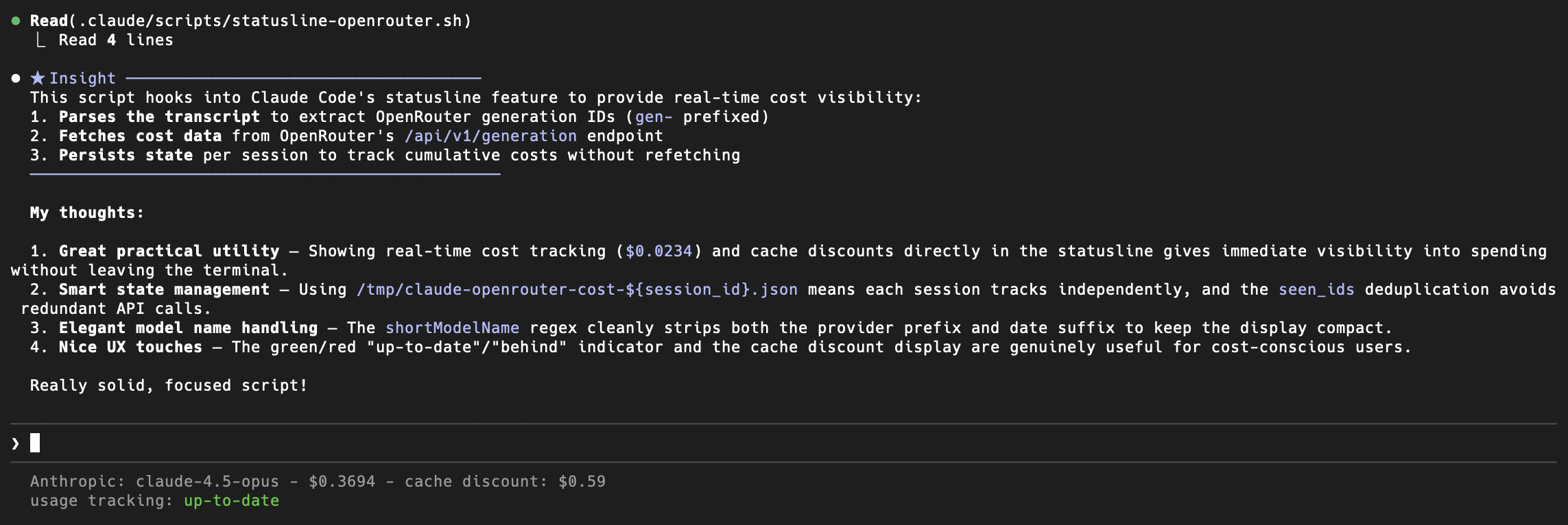
Download the statusline scripts from the openrouter-examples repository, make them executable, and add the following to your ~/.claude/settings.json:
The script uses your ANTHROPIC_AUTH_TOKEN environment variable, which should already be set to your OpenRouter API key if you followed the setup above.
Troubleshooting
- Auth Errors: Ensure
ANTHROPIC_API_KEYis set to an empty string (""). If it is unset (null), Claude Code might fall back to its default behavior and try to authenticate with Anthropic servers. - Context Length Errors: If you hit context limits, consider breaking your task into smaller chunks or starting a new session.
- Privacy: OpenRouter does not log your source code prompts unless you explicitly opt-in to prompt logging in your account settings. See our Privacy Policy for details.