Claude Desktop with OpenRouter is only guaranteed to work with the Anthropic first-party provider. For maximum compatibility, we recommend setting Anthropic 1P as top priority provider when using Claude Desktop. Why Use OpenRouter with Claude Desktop?
OpenRouter adds a reliability and management layer between Claude Desktop and Anthropic’s API, giving you and your organization several key benefits.
Provider Failover for High Availability
Anthropic’s API occasionally experiences outages or rate limiting. When you route Claude Desktop through OpenRouter, your requests automatically fail over between multiple Anthropic providers. If one provider is unavailable or rate-limited, OpenRouter seamlessly routes to another, keeping your sessions uninterrupted.
Organizational Budget Controls
For teams and organizations, OpenRouter provides centralized budget management. You can set spending limits, allocate credits across team members, and prevent unexpected cost overruns. This is especially valuable when multiple team members are using Claude Desktop across your organization.
Usage Visibility and Analytics
OpenRouter gives you complete visibility into how Claude Desktop is being used across your team. Track usage patterns, monitor costs in real-time, and understand which projects or team members are consuming the most resources. All of this data is available in your OpenRouter Activity Dashboard.
How It Works
OpenRouter exposes an API that is compatible with the Anthropic Messages API.
- Gateway Mode: When you configure Claude Desktop to use the Gateway backend with
https://openrouter.ai/api, the app speaks its native Anthropic protocol directly to OpenRouter. No local proxy server is required.
- Anthropic Skin: OpenRouter’s “Anthropic Skin” behaves exactly like the Anthropic API. It handles model mapping and passes through advanced features like “Thinking” blocks and native tool use.
- Billing: You are billed using your OpenRouter credits. Usage (including reasoning tokens) appears in your OpenRouter dashboard.
Prerequisites
Configuration Steps
Step 1: Enable Developer Mode
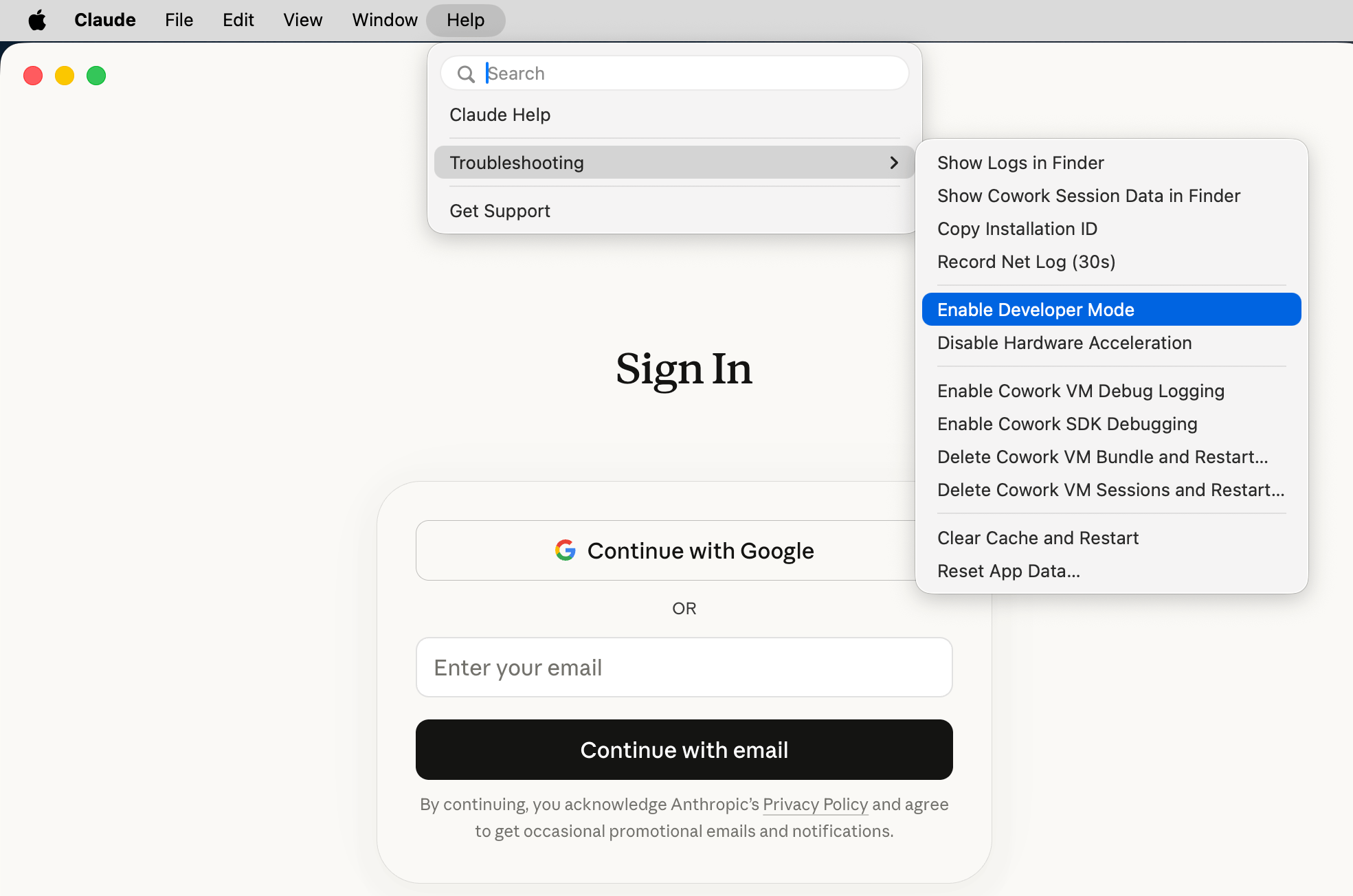
Launch Claude Desktop — you do not need to sign in. Open Help > Troubleshooting and click Enable Developer Mode. This adds a Developer menu to your menu bar.
Step 2: Open the Third-Party Inference Panel
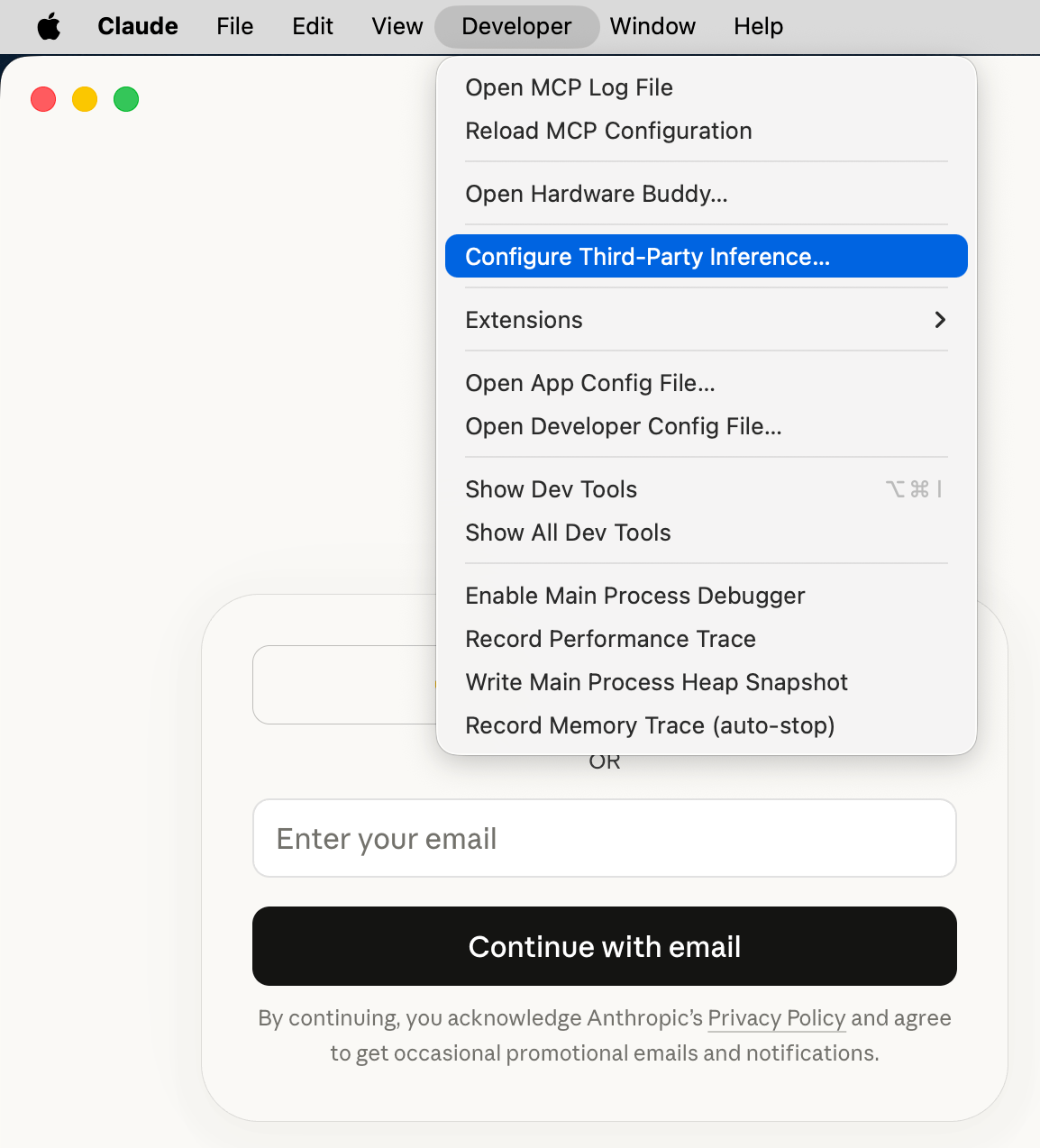
Click Developer > Configure Third-Party Inference… in the menu bar.
Step 3: Enter Gateway Credentials
Set the connection to Gateway and enter your OpenRouter credentials:
Credential kind pins which credential source the gateway uses. Set it to Static API key so Claude Desktop always authenticates with the OpenRouter API key you entered above and does not fall back to another source.
Newer builds of Claude Desktop add optional Sign-in session lifetime and Gateway SSO IdP (OIDC) fields (Client ID, Issuer URL, Authorization URL) to this panel. OpenRouter authenticates the gateway with a static API key, not an OIDC sign-in flow, so leave the OIDC IdP fields blank and authenticate with your OpenRouter API key as shown above. The OIDC option is only for gateways that act as (or sit behind) their own OAuth authorization server.
Step 4: Restart and Launch
Fully quit Claude Desktop and reopen it. On the start screen, choose Continue with Gateway (shown as “Local configuration”). No Anthropic account is needed.
Step 5: Select Your Model
The model picker will now display the models available through your OpenRouter connection.
Claude Code
Claude Code is Anthropic’s separate CLI-based coding agent that also works with OpenRouter. If you prefer a terminal workflow, see our dedicated Claude Code integration guide for environment variable setup, model configuration, fast mode, and GitHub Action integration.
Troubleshooting
-
Connection Errors: Double-check that your Gateway base URL is exactly
https://openrouter.ai/api and your API key is valid. Make sure the auth scheme is set to bearer.
-
No Models Appearing: Ensure you have credits in your OpenRouter account. Visit openrouter.ai/credits to check your balance.
-
“Continue with Gateway” Not Showing: Make sure you applied the settings locally and fully restarted Claude Desktop (quit and reopen, not just close the window).
-
“Access to this website is blocked by your network egress settings” using WebFetch: Claude Desktop sandboxes tool traffic by default, which can block the WebFetch tool from reaching sites you haven’t allowlisted. This applies to both Cowork and Claude Code. Open Developer > Configure Third-Party Inference…, switch to the Workspace restrictions tab, and add the required hosts to Allowed egress hosts.
-
TLS connection errors using Claude Code inside Claude Desktop: Claude Code runs in a sandbox whose network isolation can break TLS connections to the gateway. Relax it by adding the following to a Claude settings file, then restart Claude Desktop:
Pick the settings file that matches how widely you want the change to apply —
~/.claude/settings.json applies it to every project, while .claude/settings.json or .claude/settings.local.json inside a project scopes it to that project. In all cases it relaxes sandbox network isolation for all agent-initiated network traffic, not just gateway TLS connections, so prefer the narrowest scope that fixes your problem and remove it once you no longer need it.
-
Privacy: OpenRouter does not log your prompts unless you explicitly opt-in to prompt logging in your account settings. See our Privacy Policy for details.